
Before you install Ghidra
Ghidra is portable desktop software rather than a conventional installer. The official project does not publish a ghidra.exe, MSI package, DMG, or universal Linux package. One release ZIP contains launchers and components for supported platforms. This design keeps the installation transparent: you can place each version in its own directory, run it without changing the Windows registry, and remove it by deleting that directory after preserving projects you still need.
The current Ghidra 12.1 documentation lists Windows 10 build 1809 or later, Linux, and macOS 10.13 or later as supported platforms. All 32-bit operating-system installations are deprecated. The official minimum hardware is 4 GB of RAM and 1 GB of storage for installed binaries, but analysis databases, imported binaries, caches, symbols, and large decompilation jobs need additional capacity. A modern 64-bit machine with 8 GB or more RAM is a more comfortable starting point.
Do not extract Ghidra over an existing installation. Each release may change modules, bundled files, configuration defaults, and project formats. Keeping ghidra_12.1.3_PUBLIC beside an older directory makes rollback and comparison easier. Before opening valuable projects with a newer release, back up the project .gpr file and associated .rep directory. Once an upgraded program is saved, it may no longer open in the older version.
If you are searching for how to install Ghidra, the short answer is to download and install Ghidra by pairing the official PUBLIC ZIP with JDK 21, then extracting it and running the launcher for your operating system. There is no separate installer wizard for the normal desktop distribution.
Ghidra can inspect executable code, firmware, and memory-derived artifacts. Downloading the tool is legal in many jurisdictions, but your right to analyze a particular target depends on ownership, permission, contracts, and applicable law.
Install Ghidra prerequisites: JDK 21 64-bit
Ghidra 12.1 requires a Java 21 Runtime and Development Kit. The word Development matters: install a full 64-bit JDK rather than assuming any Java runtime is sufficient. The official README names Adoptium Temurin and Amazon Corretto as free long-term-support distributions. Your operating system or Linux package manager may offer another compatible OpenJDK 21 build.
After installation, open a fresh terminal or Command Prompt and run java -version. The output should identify Java 21 and a 64-bit runtime. Ghidra first checks Java available through JAVA_HOME or PATH. If it finds Java but cannot locate a supported JDK, the launcher can ask for the JDK home directory, which is the parent directory containing the JDK's bin folder.
Avoid downgrading Ghidra merely because an old JDK is already installed for another application. Multiple JDK versions can coexist. You can point Ghidra at the correct one using environment configuration while leaving other software on its required Java version. Advanced users can also set JAVA_HOME_OVERRIDE in support/launch.properties, but some Java must still be discoverable for the launcher to start its search.
java -versionjavac -versionDownload the correct file to install Ghidra
Open the official Ghidra 12.1.3 release and expand Assets. The runnable archive is ghidra_12.1.3_PUBLIC_20260817.zip. GitHub also displays automatically generated Source code ZIP and tar.gz links. Those source archives do not contain the pre-built distribution layout expected by the normal launch instructions.
The direct Ghidra download on this page waits 15 seconds and then opens the exact asset URL on github.com/NationalSecurityAgency/ghidra. The delay is visible and accessible, and the original URL remains in the page for a non-JavaScript fallback. The site does not receive, rename, patch, compress, or wrap the file. This distinction is important because an unofficial installer may be outdated or may add code that is not part of the upstream release.
The 12.1.3 ZIP is 569,445,154 bytes, approximately 543.1 MiB. If the browser saves an HTML page, a tiny file, or a file with an unexpected executable extension, stop and return to the official release page. A valid release download should keep the published ZIP filename.
| GitHub asset | Use it to install Ghidra? | Purpose |
|---|---|---|
| ghidra_12.1.3_PUBLIC_20260817.zip | Yes | Official pre-built multi-platform distribution |
| Source code (zip) | No | Repository snapshot for developers building from source |
| Source code (tar.gz) | No | Repository snapshot in tar.gz format |
Verify the ZIP before you install Ghidra
The official release notes publish a SHA-256 digest for the runnable ZIP. A digest verifies that the bytes you downloaded match the bytes described by the publisher. It does not replace judgment about the publisher or prove that software has no vulnerabilities, but it detects corruption and unexpected file changes.
Calculate the hash locally and compare the result with 93a5d11a9ad510622acaaf908c556a7b9b764d338e78a7567f3689bf5081fd54. The comparison must be exact. Windows PowerShell provides Get-FileHash; macOS includes shasum; most Linux distributions provide sha256sum. If the values differ, delete the file and download it again from the official release.
Get-FileHash .\ghidra_12.1.3_PUBLIC_20260817.zip -Algorithm SHA256shasum -a 256 ghidra_12.1.3_PUBLIC_20260817.zipsha256sum ghidra_12.1.3_PUBLIC_20260817.zipInstall Ghidra from the ZIP and run the launcher
To install Ghidra from the ZIP, extract it into a new, writable directory. On Windows, a folder under your user profile or a development-tools directory avoids permissions associated with the root of C:\ or Program Files. On Linux and macOS, a directory under your home folder is the simplest personal installation. Do not launch scripts while they are still inside the compressed archive because relative paths and bundled modules will not resolve correctly.
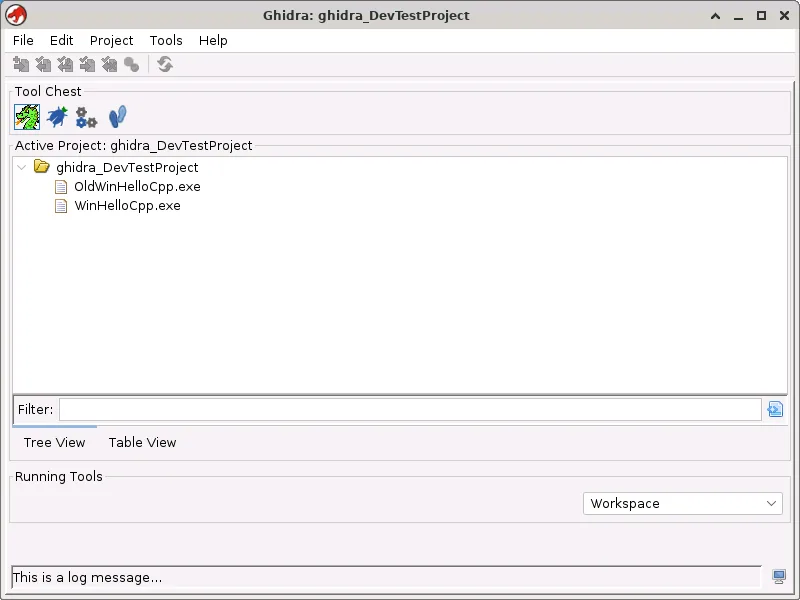
Open the extracted ghidra_12.1.3_PUBLIC directory. Run ghidraRun.bat on Windows or ./ghidraRun on Linux and macOS. The first startup may take longer while Java initializes modules and Ghidra creates user settings and caches outside the installation directory. When the Project Window appears, create a non-shared project, choose a writable project directory, and import only files you are authorized to inspect.
Ghidra does not automatically create a desktop shortcut or Start menu entry. That is expected, not an incomplete installation. You may create your own shortcut pointing to the launcher after confirming the application starts. To remove Ghidra later, close it, preserve any projects stored elsewhere, and delete the extracted application directory. User settings and caches live in platform-standard profile locations and can be reviewed separately.
- 1
Extract the entire archive
Keep the directory structure intact and use a fresh destination for every Ghidra version.
ghidra_12.1.3_PUBLIC/ - 2
Open the installation directory
Confirm that folders such as Ghidra, Extensions, support, docs, and server appear beside the launch script.
cd ghidra_12.1.3_PUBLIC - 3
Run the correct script
Use the batch file on Windows or the executable shell script on Linux and macOS.
ghidraRun.bat | ./ghidraRun - 4
Create a local project
Choose File > New Project, select Non-Shared Project, and store it somewhere you can back up.
File > New Project
Common Ghidra installation problems
If the launcher reports that the java command cannot be found, install JDK 21 and open a new terminal so updated environment variables are loaded. If it reports that no supported JDK was found, verify both java -version and javac -version, then provide the JDK home directory rather than the path to java.exe itself.
If Windows extraction fails or produces missing files, update 7-Zip or use the built-in Extract All command. The official notes warn that older 7-Zip releases may mishandle zero-length files. Ghidra also cannot launch from a path containing ! on any platform, and Windows paths containing ^ are known to fail. Move the installation into a simpler directory when a path-related error appears.
On macOS, Gatekeeper may quarantine unsigned pre-built native components. The official guidance recommends removing the quarantine attribute from the downloaded ZIP before extraction or building native components locally before first launch. On Linux, blank windows under some non-reparenting window managers can be addressed with the documented _JAVA_AWT_WM_NONREPARENTING launch property. Use the platform guides for exact context before changing settings.
| Symptom | Likely cause | First action |
|---|---|---|
| java command not found | No Java on PATH or JAVA_HOME | Install JDK 21 and reopen the terminal |
| Failed to find a supported JDK | Wrong Java version or runtime-only package | Verify Java 21 and javac, then select the JDK home |
| Ghidra exits immediately | Error hidden by background launch | Use support/ghidraDebug or foreground launch for details |
| Archive extracts incorrectly | Outdated unzip utility or partial download | Update the extractor, verify SHA-256, and extract again |
| macOS blocks native components | Gatekeeper quarantine | Follow the official xattr or native-build guidance |
Questions about how to install Ghidra
Do I need administrator privileges to install Ghidra?
Usually not. Extract Ghidra into a directory owned by your user account. Administrator rights may be required for protected destinations or when configuring Ghidra Server as a system service.
Can I install Ghidra without Java?
No. Ghidra 12.1 needs a 64-bit JDK 21. Python is optional for ordinary GUI use but required for Debugger and PyGhidra workflows.
Where should I install Ghidra from the ZIP?
Install Ghidra from the ZIP in a simple, writable path with enough space. Avoid paths containing exclamation marks on every platform and caret characters on Windows. Keep each release in a separate directory.
Should I download Ghidra Source code from GitHub?
Not for a normal installation. Download the named PUBLIC release ZIP under Assets. Source code archives require a separate build toolchain and build process.
How do I uninstall Ghidra?
Close Ghidra, preserve projects you want to keep, and delete the extracted installation directory. Ghidra does not use a traditional desktop uninstaller for normal portable installations.
How do I download and install Ghidra?
Download the official PUBLIC release ZIP, install a 64-bit JDK 21, verify the SHA-256 value when needed, extract the archive into a new writable directory, and run ghidraRun.bat on Windows or ./ghidraRun on macOS and Linux.
Install Ghidra from the verified release
Install Ghidra from the ZIP published for version 12.1.3, and keep the checksum available while the file downloads.