
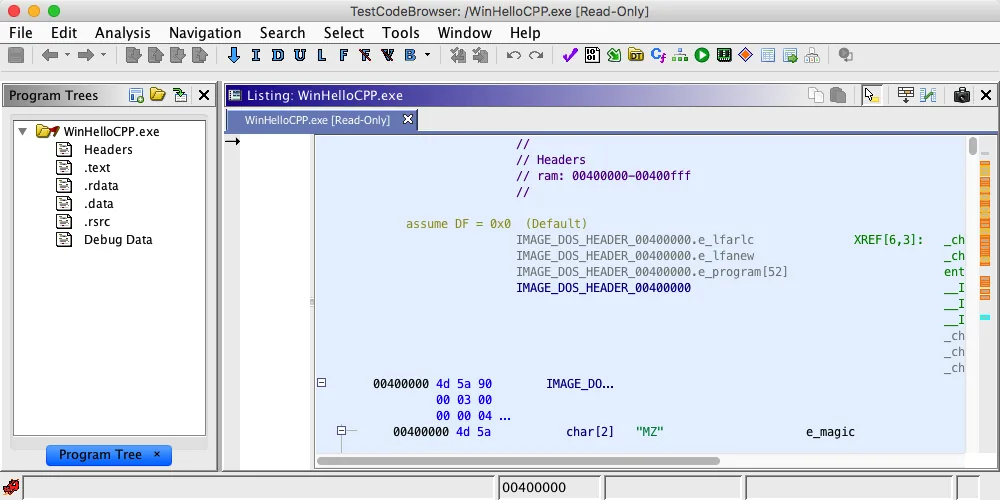
Plugin, extension, or script? Choose the right workflow
People often use plugin, extension, and script as if they mean the same thing. They do not always require the same installation path. A script is usually a Java or Python file that runs inside the Script Manager. An extension is a packaged module that can add tools, analyzers, UI, or other capabilities to the Ghidra installation. GhidraDev is developer tooling for building and testing extensions; it is not a general plugin marketplace.
If your goal is a one-off action such as renaming functions, exporting a report, or searching a program, start with the Ghidra Script Manager guide. If the download is a packaged add-on with its own release notes or compatibility statement, use the extension workflow below. For Python that must run as native CPython outside the in-application runtime, use the PyGhidra guide instead.
Ghidra can load third-party code with the same local access available to the application. Keep unknown extensions away from sensitive projects, credentials, and production machines until their source, release, and behavior are understood.
| What you have | Typical job | Best next step |
|---|---|---|
| Java or Python script | A repeatable analysis action | Open Script Manager and inspect it first |
| Packaged extension | A new tool, analyzer, or UI module | Verify the release, then use File > Install Extensions... |
| GhidraDev project | Develop or rebuild an extension | Use the official developer workflow and matching source tag |
| Source archive | Read or build project source | Do not treat it as a ready-to-run plugin package |
Verify the plugin source and release
Start with the extension's own project repository, not a repackaged download page. Check the owner, release tag, README, license, supported Ghidra versions, Java requirements, operating-system notes, and issue history. A repository may contain source code while its Releases page contains the packaged artifact; those are different downloads.
The current site verification uses Ghidra 12.1.3, published August 18, 2026, with a 64-bit JDK 21 environment. That version boundary is useful for testing, not a promise that every third-party extension already supports it. If an extension says it targets an older Ghidra API, keep an older Ghidra folder beside the current one and test the extension there rather than weakening the current installation. Link back to the Ghidra release guide when you need version history or upgrade precautions.
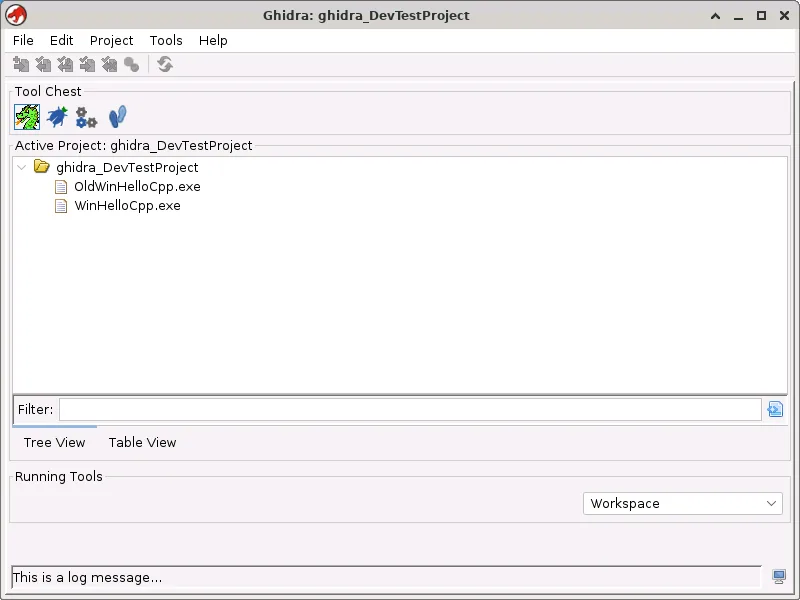
Install a Ghidra extension step by step
Use a clean, writable Ghidra installation for the first test. Do not extract an extension into a random folder and assume Ghidra will discover it. Follow the package's README when it adds a prerequisite or a version-specific step, then use Ghidra's own extension installation command when the package is supported by that workflow.
- 1
Back up the test project
Close Ghidra and copy the project data before installing anything. Use a disposable sample or an authorized training binary for the first launch.
Project.gpr + Project.rep/ - 2
Inspect the package
Confirm the repository, release tag, checksum when published, supported Ghidra version, Java requirement, and whether the file is a packaged extension rather than Source code ZIP.
README + Releases + compatibility notes - 3
Open the extension installer
Start the verified Ghidra build, choose File > Install Extensions..., and select the package according to its documented format. Do not rename files to make an incompatible archive look supported.
File > Install Extensions... - 4
Restart and confirm
Restart Ghidra if requested. Check the new tool, analyzer, menu, or provider on the disposable project and read the application log if the expected entry is missing.
Restart > open test project
- Do not install into the old application folder when you are comparing compatibility.
- Do not run a third-party installer merely because it claims to install a Ghidra plugin.
- Keep the original archive and its release URL so you can reproduce or remove the test.
Enable the extension and test one small job
A successful copy operation is not proof that an extension is usable. Open the tool or analyzer it adds, run the smallest meaningful task, and compare the result with a built-in Ghidra view such as Listing, CodeBrowser, or the Decompiler. Record the Ghidra version, JDK build, extension release, input hash, and any options that affect the result.
Keep script execution and extension testing separate. The Ghidra search guide and Decompiler guide show how to validate findings against native views instead of trusting one automated output. Only analyze files you are authorized to inspect.
Why a Ghidra plugin stops working after an update
Compiled extensions can depend on Ghidra APIs, class names, tool services, native libraries, or exact Java behavior. A new Ghidra release may change one of those boundaries even when the extension's visible feature looks simple. Read the extension release notes before upgrading, and keep a side-by-side installation when a project depends on a pinned version.
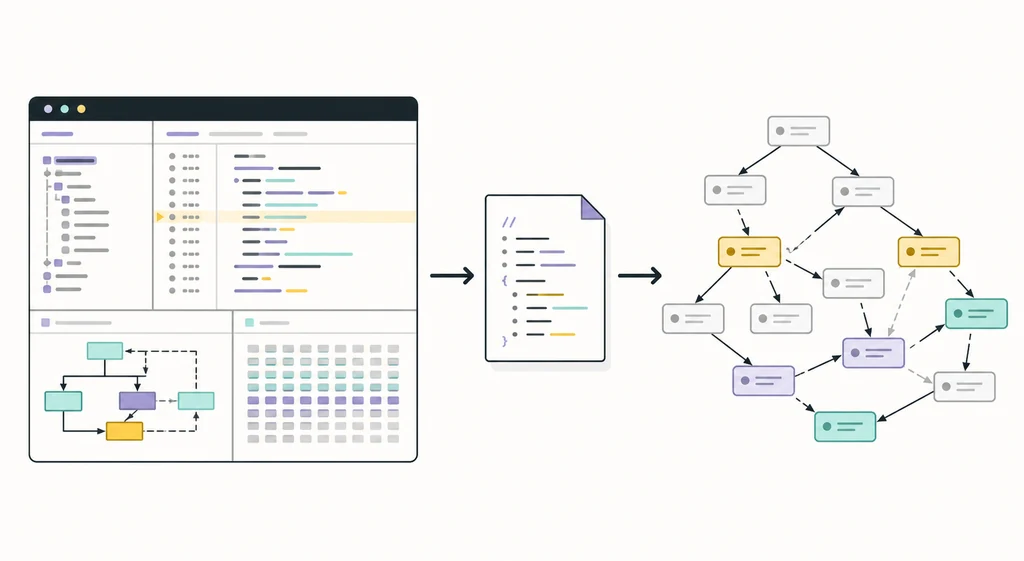
The diagram below is an editorial concept illustration, not a Ghidra screenshot. The important decision remains in the surrounding text: source provenance first, installation second, compatibility test third.

Fix common Ghidra plugin and extension problems
When an extension fails, preserve the error text and undo only the smallest change. Do not delete project data or replace the current Ghidra installation with an unknown build just to make the message disappear. The installation guide covers JDK and launch problems; use the checks below for extension-specific failures.
- Capture the Ghidra version from the release page and the Java output from
java -version. - Test with one extension at a time so a failure has a clear cause.
- Remove or quarantine a package you cannot identify; do not keep it enabled on a sensitive workstation.
| Symptom | Likely cause | Safer response |
|---|---|---|
| The package is not listed | Wrong archive type, nested folder, or unsupported release | Re-read the package README and select the published extension asset |
| The tool is installed but missing | Restart, tool configuration, or provider visibility | Restart Ghidra, inspect the tool configuration, and test a fresh project |
| NoClassDefFoundError or API error | Compiled against another Ghidra API or Java environment | Use a compatible release or rebuild from the matching source tag |
| Ghidra becomes unstable | Extension defect, native helper, or conflicting module | Close Ghidra, restore the clean install, and report the exact version pair |
| It works on an older release only | The extension has not caught up with the current API | Keep the older version isolated and record the pinned toolchain |
GhidraDev is for building extensions, not browsing a plugin store
GhidraDev is the official development path for people who need to create or rebuild Ghidra modules in an Eclipse-based environment. It matters when a third-party extension has no compatible packaged release, when you need to inspect source changes, or when an internal team must build against a recorded Ghidra tag. It is more work than installing a published package and should not be presented as a beginner plugin manager.
If you only need automation, compare the PyGhidra workflow and the beginner tutorial before adding a development environment. A reproducible extension build should record the source commit, Ghidra tag, JDK, Gradle or Eclipse setup, operating system, and output artifact hash.
A third-party plugin list can help you discover projects, but the project repository and release notes remain the evidence for installation and compatibility. This page does not endorse a particular extension.
Ghidra plugins and extensions FAQ
Is a Ghidra plugin the same as a script?
No. A Java or Python script normally runs from Script Manager for a focused task. A packaged extension can add tools, analyzers, or UI and follows its own installation and compatibility rules.
How do I install a Ghidra extension?
Verify the repository and release first, back up a test project, then start the verified Ghidra build and use File > Install Extensions... when the package documentation supports that workflow. Restart and test the new capability on an authorized sample.
Can I install any ZIP from GitHub as a Ghidra plugin?
No. A GitHub repository can publish source archives, release assets, examples, and unrelated files. Use the package documented by the project, check its Ghidra and Java requirements, and do not rename an incompatible archive.
Why did my extension stop working after updating Ghidra?
The extension may depend on a changed Ghidra API, service, native helper, or Java environment. Check for a compatible release or rebuild it against the new source tag; keep the old installation separate until testing is complete.
Does this page recommend a specific third-party plugin?
No. It explains how to evaluate and test plugins without treating a directory listing as an endorsement. Use the project repository, release notes, license, and compatibility evidence for the extension you choose.
Start from a verified Ghidra installation
Download the current official Ghidra 12.1.3 ZIP, keep your test project separate, and add one verified extension at a time.