
What the Ghidra Script Manager does
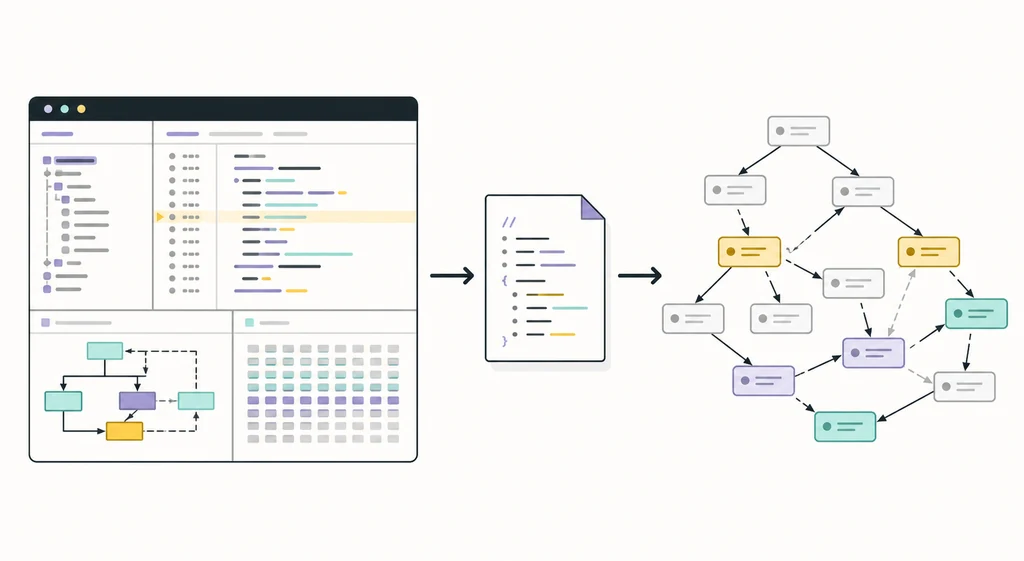
The Script Manager is Ghidra's in-application workspace for finding and launching scripts. It is useful when the same inspection or cleanup action appears in many projects: list functions that match a pattern, rename symbols consistently, export selected data, add comments, or collect evidence for a report. The result is still a normal Ghidra analysis action, so you can review the affected program in CodeBrowser and confirm the result in the Listing or Decompiler.
A script is not a substitute for understanding the binary. Treat it as a small, reviewable experiment: define the target project, make the smallest useful change, save a copy when the operation is destructive, and record what the script changed. The safest starting point is a practice binary you own, an open-source sample, or an authorized training target. The guide's Ghidra beginner tutorial covers the surrounding static-analysis workflow, while this page concentrates on automation inside that workflow.
Only analyze files and systems you are authorized to inspect. Script Manager can modify a project quickly, so keep backups and test on a copy before batch operations.
- Discover scripts supplied by Ghidra or stored in your script directories.
- Open a script in the editor, inspect its language and imports, and run it against the active program.
- Use the console and program model to make a small, repeatable change.
- Separate built-in Script Manager automation from native CPython automation with PyGhidra.
Open Script Manager and find a script
Open a project and launch the Script Manager from Ghidra's tool menus. The exact menu placement can vary slightly with the active tool and release, but the workspace exposes a script list, search or filter controls, an editor area, and actions for running or refreshing scripts. If a script you just copied is missing, refresh the list before troubleshooting the code itself.
Start with a read-only or reporting script. Read the header comments and imports before pressing Run. A useful header should tell you whether the script expects an open program, a selection, a current function, or a particular processor. If a script relies on a selected function, select that function in Listing first; if it scans the whole program, expect a longer run and more output.
- 1
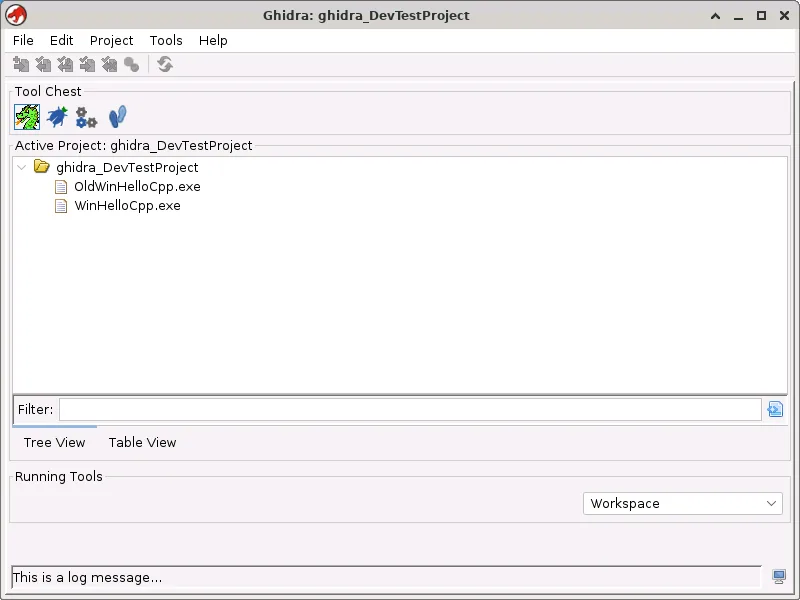
Open a practice project
Create or open a non-shared project and import a binary you are allowed to inspect. Keep the original file and project copy unchanged.
File > New Project > Non-Shared Project - 2
Launch Script Manager
Open the scripting workspace from the tool menus, then use its filter or search field to narrow the available scripts.
Window > Script Manager - 3
Inspect before running
Check the script language, required context, imports, output destination, and whether it changes symbols, comments, data types, or memory.
Read the header and imports first - 4
Run and review
Run once on a small target, read the console output, and verify the changed program state in Listing or the Decompiler.
Run > Run Script
Write a small first script with a clear stopping point
The first script should answer one narrow question. For example, count functions, print names that match a prefix, list defined strings, or report the current selection. Avoid combining analysis, renaming, export, and cleanup in one first attempt. A narrow script is easier to review and easier to rerun after you close and reopen the project.
Use the program model that Ghidra exposes to scripts rather than scraping the visible UI. In practice, this means asking the current program for functions, symbols, references, instructions, or memory blocks and sending a short result to the console. The official GhidraScript API reference is the right place to confirm method names and available helpers; do not assume that a method from an old forum example still exists in your release.
When a script changes the program, make the change explicit in the output. Print a count before and after, include the relevant address or symbol name, and stop on an unexpected state instead of silently continuing. This makes a batch run auditable and helps you distinguish a script error from an incorrect analysis assumption.
read context -> inspect one object -> print result -> change nothing -> repeattarget: practice.bin | scope: current program | writes: none | result: 12 matching functions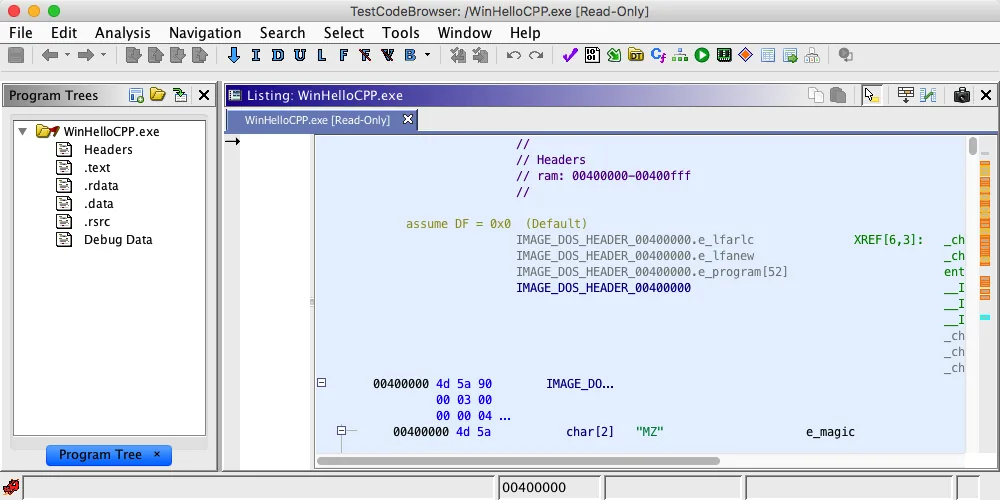
Java, Python, and the Ghidra 12.1.3 boundary
Search data often mixes the phrases Ghidra scripting, Ghidra scripts, and Python for Ghidra, but they do not always describe the same runtime. Script Manager is the in-application entry point. Java scripts are the clearest long-term choice for code that should work with Ghidra's Java APIs and be shared with a team. Python examples can be convenient, but their availability depends on how the current Ghidra process was started and which Python integration is installed.
For native CPython automation outside the built-in script window, use the site's PyGhidra install guide. PyGhidra is a separate boundary: it lets a CPython process connect to Ghidra's API, whereas a Script Manager script runs in the Ghidra application context. If the console says that Python is unavailable because Ghidra was not started with PyGhidra, treat that as a runtime configuration message, not as proof that the script's logic is wrong.
First identify where the script is running: built-in Script Manager, a Ghidra process started with PyGhidra, or an external CPython process. Then choose documentation and troubleshooting steps for that runtime.
| Need | Use first | Why |
|---|---|---|
| One small action in an open project | Script Manager | Fast feedback and visible project context |
| Reusable Java API automation | Java script | Matches the application's native API model |
| Native CPython workflow | PyGhidra | Designed for an external Python process |
| Large repeatable batch | Script plus a logged harness | Makes inputs, outputs, and failures reviewable |
Useful Script Manager patterns for real projects
A useful script usually has four parts: establish context, select a small set of program objects, perform one operation, and report what happened. Context can be the current program, current location, current selection, or current function. Selection should be explicit: a name filter, address range, memory block, function property, or set of references. The operation might be reporting, renaming, adding a comment, applying a data type, or exporting a list.
Keep the script's output structured enough to compare two runs. A one-line summary is helpful, but a short per-item line with an address or symbol name is better for debugging. When a script is slow, print a progress marker and test it on one function or one memory block first. If you are building a report, export stable identifiers and preserve the original project so another analyst can reproduce the same result.
- Read the current program and location before asking for global state.
- Prefer a bounded iterator or selection over an unbounded scan.
- Treat addresses, symbols, and data types as evidence that should be checked in Listing.
- Separate read-only discovery from write operations so the change can be reviewed.
- Save a project copy before mass renaming, retyping, or comment generation.
context -> selection -> operation -> evidence -> rollback planFix common Ghidra scripting problems
When a script fails, first capture the exact message and the runtime context. Record the Ghidra release, operating system, script language, whether a program is open, whether a selection exists, and how the process was started. This short record prevents a common mistake: trying a PyGhidra fix for a Script Manager problem or editing Java imports when the real issue is an unavailable Python runtime.
Also check the smallest input that reproduces the problem. A script that fails only on one processor, one malformed function, or one empty selection needs a boundary check rather than a broad rewrite. After a fix, rerun the same small case and compare the output with the original evidence.
Save the full error text, the smallest reproducing file or project copy, and the script version. Do not paste unknown binaries or sensitive analysis data into a public issue.
| Symptom | Check first | Safer next action |
|---|---|---|
| Script is not listed | Refresh, file location, extension, and script-directory configuration | Reload the list and open the file directly if the workflow allows it |
| Python is unavailable | How Ghidra was started and whether PyGhidra is configured | Use a Java script or follow the PyGhidra boundary instead of guessing |
| No current program or selection | Active tool, project, program, and selection context | Open the program and test a one-function case |
| Output looks wrong | Architecture, address space, Listing evidence, and data types | Verify the assumption in CodeBrowser before changing the script |
A safe, repeatable scripting routine
For a one-off task, the routine can be short. For a team or a repeated investigation, write down the input, expected result, script revision, Ghidra version, and whether the script changes the project. This is especially important when moving from an exploratory report to a bulk rename or data-type operation. The Ghidra Decompiler guide can help verify the result, while the installation page explains how to keep the application and project directories separate.
Start with read-only output, compare it with the Listing, and only then enable changes. Keep a before/after count and a rollback or project-copy plan. If the script becomes a full automation system with external inputs, tests, and a CPython dependency, stop expanding the Script Manager file and evaluate PyGhidra or a dedicated harness instead.
- 1
Prepare
Pin the Ghidra version, open a project copy, and write down the intended scope.
version + input + scope - 2
Observe
Run a read-only script and capture a small, address-aware output sample.
read-only first - 3
Change
Make one controlled edit, report the count, and verify the result in the analysis views.
one operation + evidence - 4
Preserve
Save the script, notes, output, and project copy so another run can be compared or reversed.
script + log + project copy
Ghidra Script Manager questions
What is the Ghidra Script Manager?
It is Ghidra's in-application workspace for discovering, editing, and running scripts against the active project or program. It is best for small, reviewable automation tasks and is not the same thing as an external CPython process.
Can I use Python in Ghidra Script Manager?
Python availability depends on the current Ghidra runtime and how it was started. If the application reports that Python is unavailable, do not assume the script is broken. Use a Java script for native in-application automation or follow the PyGhidra guide for a CPython workflow.
Is Ghidra scripting the same as PyGhidra?
No. Script Manager runs inside Ghidra's application context. PyGhidra connects a native CPython process to Ghidra's API. They can support related goals, but their installation, startup, and troubleshooting paths are different.
Why is my script missing from the Script Manager list?
Refresh the list first, then check the file extension, script directory, and any language or filter setting. If it still does not appear, open the file directly when supported and verify that its header and imports match the current Ghidra release.
Should a first Ghidra script modify a project?
Prefer a read-only report first. Once the output matches Listing or Decompiler evidence, test one controlled change on a project copy, record the count, and keep a rollback or backup plan before running the script in bulk.