
Ghidra Headless Analyzer: What It Is and When to Use It
The Ghidra Headless Analyzer is the command-line entry point for running Ghidra analysis without opening the desktop interface. It can create or populate a project, analyze imported or existing programs, and run non-GUI scripts for sample folders, firmware triage, scheduled reports, or controlled build pipelines.
Headless is not a remote server and it does not make every conclusion automatic. The launcher still depends on a Ghidra installation, project location, loaders, analyzers, scripts, and normal project rules. Record the release, input set, options, output project, and log, and analyze only authorized material.
The official documentation and the release-matched support/analyzeHeadless launcher define the available options. This page explains a safe workflow, but it does not replace the help bundled with your installed release.
Prepare the installation, project, and input files
Start with the official Ghidra ZIP and a matching 64-bit JDK. The release verified for this site is Ghidra 12.1.3, published August 18, 2026, and its archive includes the launcher under support/. Follow the site's Ghidra installation guide if the desktop application has not started; a broken JDK or incomplete extraction also breaks headless runs.
Keep the application, project, and input/report directories separate. Do not edit a live project from a batch job or overwrite a known-good copy before inspecting the new run. Use a new project name while testing scripts or analyzer options.
- 1
Confirm the launcher
From the Ghidra installation, check that the platform launcher exists and can print help. Windows uses the batch file; macOS and Linux use the shell launcher.
support/analyzeHeadless.bat OR support/analyzeHeadless - 2
Choose a writable project root
Use a directory with enough space for imported programs, databases, caches, and reports. Avoid a synchronized folder while diagnosing file-lock or concurrent-write problems.
D:\analysis\projects /srv/ghidra/projects - 3
Record the input set
Write down the file names, hashes, architecture assumptions, and collection date. A directory path is not a reproducible input unless its contents are recorded.
samples/firmware-a.bin samples/firmware-b.bin - 4
Back up before processing
Copy a project before running a script that renames symbols, changes data types, deletes programs, or saves upgraded data.
ProjectName.gpr + ProjectName.rep/
Choose -import or -process
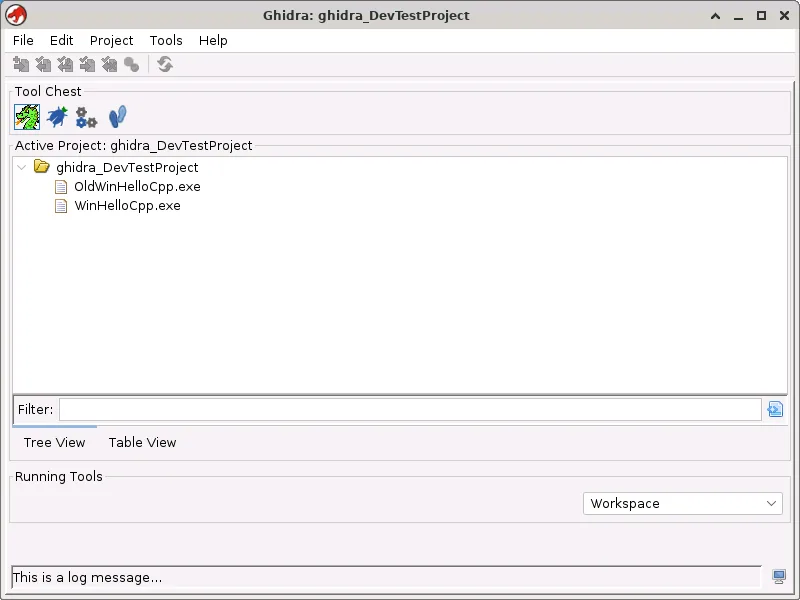
The key Headless Analyzer decision is whether the command should create or populate a project from input files, or reopen programs already in a project. Use -import for a file or directory that should become project programs. Use -process when the project already contains the program.
Do not add both modes just because an online example does. Start with one explainable job, specify a loader or processor only when needed, and save the successful command in a versioned script.
| Task | Mode | Typical input | What to verify |
|---|---|---|---|
| Create a project from binaries | -import | File or directory | Loader, language, project name |
| Analyze programs already in a project | -process | Existing project | Program names and project copy |
| Run a script during import | -import + -postScript | New input set | Script path and saved output |
| Process a directory of project programs | -process + -recursive | Existing project tree | Scope and log per run |
cd C:\ghidra_12.1.3_PUBLIC\support
analyzeHeadless.bat D:\analysis\projects HeadlessDemo -import D:\analysis\samples\demo.exe./support/analyzeHeadless /srv/ghidra/projects HeadlessDemo -process demo.exeUse scripts without losing repeatability
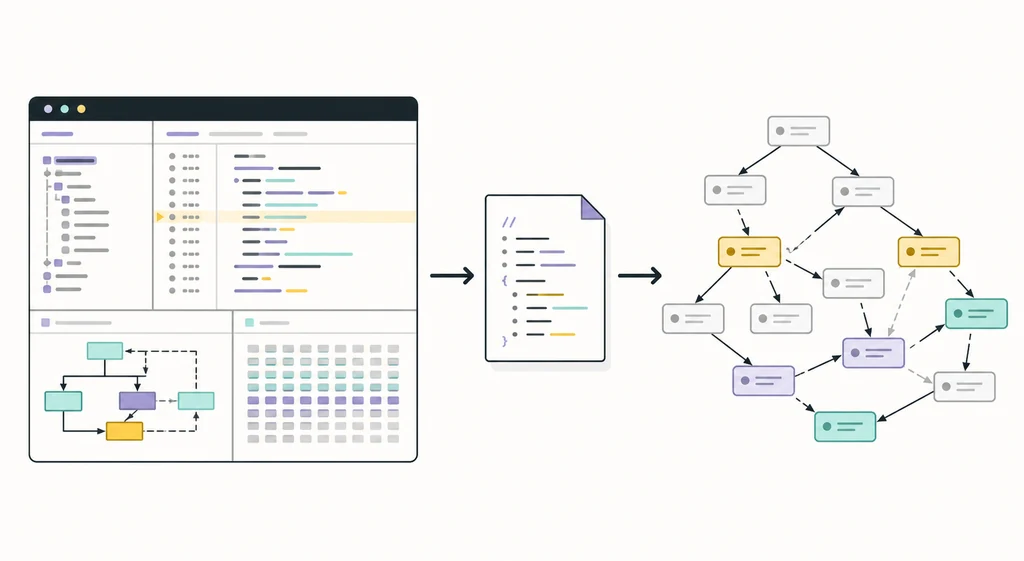
Headless jobs become more useful when a script turns analysis state into a small, reviewable result. A pre-script can prepare a project action; a post-script can inspect the analyzed program and write a report. Keep scripts narrow: printing functions, strings, imports, or one metadata field is easier to test than silently renaming a large project.
Put scripts in a versioned directory and pass it with -scriptPath. Use -preScript and -postScript for explicit hooks and capture the supported log output. If you need CPython outside Ghidra, read the site's PyGhidra guide; the two automation boundaries are related but different.
- Start with a read-only or reporting task and a small authorized sample.
- Pin the script revision beside the command and the Ghidra release.
- Write reports outside the project directory unless the script must save project data.
- Test an empty result, a missing field, an unsupported program type, and a second run.
- Compare a backed-up project before accepting symbol or data-type changes.
Batch directories, logs, and CI jobs
For a directory workflow, decide whether files should share one project or use isolated projects. One project helps cross-file navigation; separate projects reduce accidental mixing. Use -recursive only when nested folders are in scope because a broad path can import more data than expected.
Record the command, Ghidra release, Java version, input manifest, script revision, exit status, logs, project path, and files with unexpected output. In CI, archive logs and reports and fail when the launcher or post-script reports an error. A green process is not proof that every expected function or string was found.
The same command can produce different conclusions when the input directory, project profile, extension set, script revision, or Ghidra release changes. Record those boundaries next to the report.
./support/analyzeHeadless /srv/ghidra/projects BatchSet -import /srv/ghidra/samples -recursive -scriptPath /srv/ghidra/scripts -postScript export_summary.pyrelease=12.1.3 input_manifest=sha256.csv script=export_summary.py@abc123 project=BatchSet log=run-2026-09-16.logRead the result and verify it in Ghidra
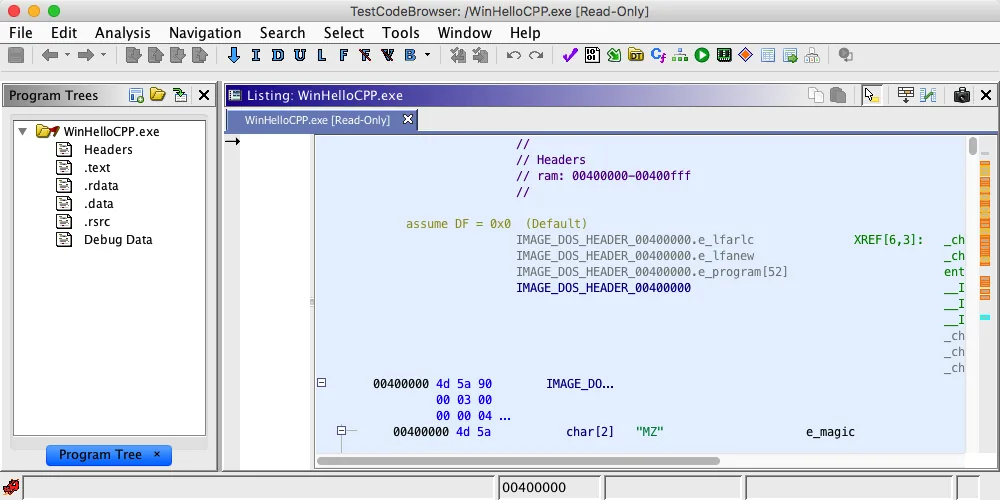
After a headless run, inspect the exit status and log before opening the project. Check loader messages, language or compiler choices, analysis completion, script exceptions, skipped files, and write failures. Then open a copy in the GUI and verify a small sample in Listing, references, Decompiler, or symbols. The Ghidra search guide and Decompiler guide cover these checks.
A report is an output artifact, not proof by itself. If a script finds no strings, confirm the language, scope, and API object. Keep the input manifest and exact run record beside saved project data.
| Symptom | First check | Safer next step |
|---|---|---|
| No program appears | Import mode, path, loader | Run one file with a new project name |
| Script is not found | Script path and filename | Use an absolute script directory and a tiny test script |
| Analysis is incomplete | Log, timeout, memory, analyzer messages | Retry one sample and compare the project copy |
| Output disagrees with GUI | Release, language, options, script phase | Verify the same program and settings in both paths |
Headless Analyzer vs Script Manager and PyGhidra
The Headless Analyzer is the CLI job boundary. Script Manager runs scripts inside the visible Ghidra application. PyGhidra connects an external CPython process to Ghidra's API. They can appear in one investigation, but they are different runtimes.
Use the GUI for one program and visual feedback, Headless Analyzer for repeatable imports or project jobs, and PyGhidra when an external Python process is the main requirement.
| Tool boundary | Best fit | Main caution |
|---|---|---|
| Headless Analyzer | CLI batch imports and project jobs | Record project, release, scripts, and logs |
| Script Manager | Visible in-application scripts | Runtime context and current project matter |
| PyGhidra | External CPython automation | Python and Ghidra compatibility must match |
Ghidra Headless Analyzer FAQ
Where is analyzeHeadless in Ghidra?
It is in the Ghidra installation's support/ directory. Windows provides analyzeHeadless.bat; Linux and macOS use the shell launcher. Use the launcher that belongs to the release you installed.
What is the difference between -import and -process?
Use -import when the job starts with files or a directory and needs to create or populate a project. Use -process when programs already exist in the project and the job should process them.
Can Ghidra analyze many files without the GUI?
Yes. The Headless Analyzer can import or process a directory, and options such as -recursive can extend the intended scope. Start with a small authorized set and record the manifest so a batch result can be checked.
Can I run a script with analyzeHeadless?
Yes. Use the script-path and pre- or post-script options supported by your installed release. Keep scripts versioned, test them on a copy, and capture logs and reports beside the command record.
Does Headless Analyzer require a Ghidra project?
The launcher works with a project location and project name. An import job can create or populate project data, while a process job expects programs that are already in the project. Keep the project path writable and separate from the application directory.
Is Headless Analyzer the same as PyGhidra?
No. Headless Analyzer is the command-line job launcher for imports, project processing, and Ghidra scripts. PyGhidra connects an external CPython process to Ghidra's API. Pick the boundary that matches the automation you need.